What’s the correct way to handle the new dark mode UI in Freshdesk in an FDK (ticket sidebar) app? Right now the app looks pretty jarring, white on black.
Hi @Tom_Browning
we are currently working on this to bring Theme support on our apps, stay tuned!
Thanks,
Santhosh B
Freshworks Marketplace
It is already possible to apply the theme in the ticket sidebar within Freshdesk.
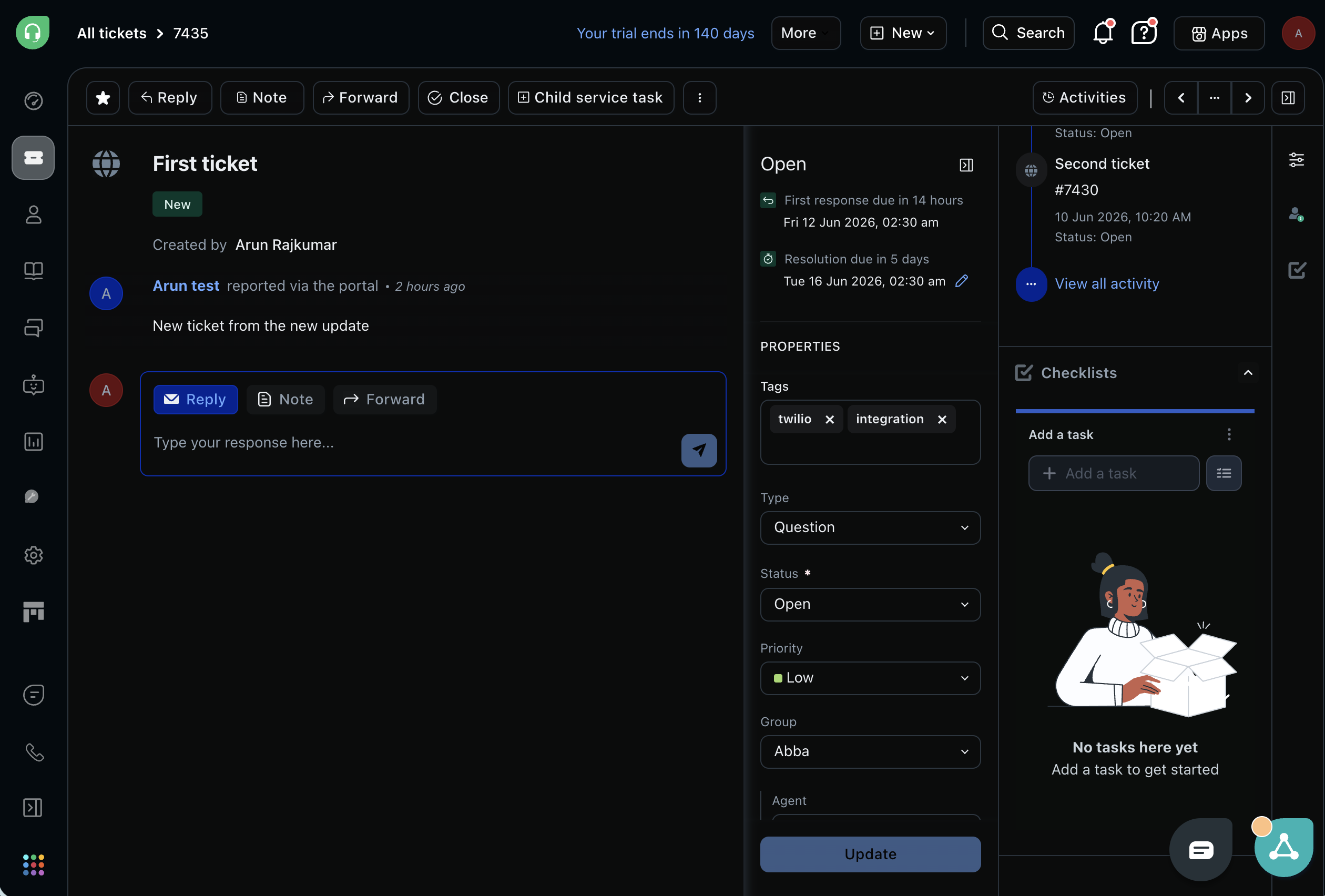
Notice the Checklists app loaded in the ticket sidebar at the right-side bottom in the screenshot.
How to Detect and Respond to Dark Mode in a Freshworks App
When you build a Freshworks app, it runs inside an iframe embedded in the Freshworks product UI. The Freshworks SDK does not expose a dedicated theme property — but your app will still correctly track theme changes, both from the OS and from the in-product theme toggle. This works because of a browser mechanism that is worth understanding clearly.
How the browser propagates theme into your iframe
Your app iframe has no direct knowledge of what theme Freshdesk has selected. But the browser does.
The CSS Color Adjust specification defines that when a parent page sets the color-scheme CSS property on its :root element, the browser propagates the used color scheme into all embedded iframes. If your iframe has not declared its own color-scheme, it inherits the parent’s.
This means that prefers-color-scheme inside your iframe does not just reflect the OS preference — it reflects whichever is more specific: the OS setting, or the parent page’s color-scheme override.
So when a user switches from light to dark in Freshdesk:
- Freshdesk applies
color-scheme: darkto its own<html>element. - The browser propagates this used color scheme into every iframe on the page.
- Inside your app,
window.matchMedia('(prefers-color-scheme: dark)').matchesbecomestrue. - The
MediaQueryListfires achangeevent. - Your listener picks it up and applies the dark class.
This is entirely passive — no SDK events, no postMessage, no custom API needed. It is a pure browser CSS mechanism that you get for free by listening to prefers-color-scheme.
How it works in your app
The pattern has three parts:
- Read the current theme on load (which already accounts for both OS and parent-page
color-scheme). - Apply it to the document (typically by toggling a CSS class on
<html>). - Listen for changes and re-apply — this fires whether the OS changes or Freshdesk’s in-product toggle changes.
Step 1 — Read the current theme
function getTheme() {
  return window.matchMedia('(prefers-color-scheme: dark)').matches
    ? 'dark'
    : 'light';
}
window.matchMedia returns a MediaQueryList object. Its .matches property is true when the condition is currently satisfied. Because the browser propagates the parent page’s color-scheme into your iframe, this already reflects Freshdesk’s theme — not just the OS preference.
Step 2 — Apply the theme to the document
The cleanest approach is to toggle a class on document.documentElement (the <html> element). Your CSS can then use that class as a selector:
function applyTheme(theme) {
  if (theme === 'dark') {
    document.documentElement.classList.add('dark');
  } else {
    document.documentElement.classList.remove('dark');
  }
}
And in your CSS:
/* Default (light) styles */
body {
  background-color: #ffffff;
  color: #1a1a1a;
}

/* Dark mode overrides */
.dark body {
  background-color: #0b0d0c;
  color: #e8eaed;
}

.dark .card {
  background-color: #1e2021;
  border-color: #3c3f41;
}
Toggling a class on <html> keeps your dark mode logic in CSS where it belongs, and completely decouples it from your JavaScript logic.
Step 3 — Listen for theme changes
Users can switch themes at any time — both via the OS system preference and via Freshdesk’s own in-product toggle. Because the browser propagates the parent page’s color-scheme into your iframe, both sources fire the same change event on your MediaQueryList. You do not need to handle them separately.
function registerThemeListener() {
  // Apply the theme immediately on load
  applyTheme(getTheme());

  const mediaQueryList = window.matchMedia('(prefers-color-scheme: dark)');

  function handleChange(event) {
    applyTheme(event.matches ? 'dark' : 'light');
  }

  mediaQueryList.addEventListener('change', handleChange);

  // Return a cleanup function — call this if your app is torn down
  return function cleanup() {
    mediaQueryList.removeEventListener('change', handleChange);
  };
}
The returned cleanup function is important in long-lived apps or single-page apps where views are mounted and unmounted. Always remove event listeners you no longer need to avoid memory leaks.
Step 4 — Wire it up after the Freshworks app initialises
The Freshworks SDK fires a ready event when the client is initialised. You should apply the theme only after this point, so the DOM is ready and your app’s context is available:
app.initialized().then(function(client) {
  // App is ready — now safe to apply theme
  registerThemeListener();
});
If your app renders into multiple locations (sidebar, modal, full-page), you may want to apply dark mode only in specific ones:
app.initialized().then(function(client) {
  client.data.get('context').then(function(data) {
    const location = data.context.location;

    // Only apply dark mode in sidebar locations
    const sidebarLocations = ['ticket_sidebar', 'service_ticket_sidebar'];
    if (sidebarLocations.includes(location)) {
      registerThemeListener();
    }
  });
});
Putting it all together
Here is the complete self-contained implementation:
function getTheme() {
  return window.matchMedia('(prefers-color-scheme: dark)').matches
    ? 'dark'
    : 'light';
}

function applyTheme(theme) {
  if (theme === 'dark') {
    document.documentElement.classList.add('dark');
  } else {
    document.documentElement.classList.remove('dark');
  }
}

function registerThemeListener() {
  applyTheme(getTheme());

  const mediaQueryList = window.matchMedia('(prefers-color-scheme: dark)');

  function handleChange(event) {
    applyTheme(event.matches ? 'dark' : 'light');
  }

  mediaQueryList.addEventListener('change', handleChange);

  return function cleanup() {
    mediaQueryList.removeEventListener('change', handleChange);
  };
}

// Initialise after the Freshworks SDK is ready
app.initialized().then(function(client) {
  registerThemeListener();
});
And the accompanying CSS:
body {
  background-color: #ffffff;
  color: #1a1a1a;
  transition: background-color 0.2s ease, color 0.2s ease;
}

.dark body {
  background-color: #0b0d0c;
  color: #e8eaed;
}
The transition property gives a smooth visual fade when the user switches themes — a small touch that makes the app feel polished.
Key takeaways
- Freshworks apps run in iframes. The SDK does not expose a theme property — but you do not need one.
- When a user changes the theme in Freshdesk’s UI, Freshdesk sets
color-schemeon its own<html>element. The browser propagates this into all embedded iframes, causingprefers-color-schemeinside your app to update automatically. - This means a single
window.matchMedia('(prefers-color-scheme: dark)')listener correctly handles both OS-level theme changes and in-product theme changes, with no extra work. - Toggle a class on
document.documentElementto apply dark mode — this keeps styling in CSS and logic in JS, cleanly separated. - Always clean up
MediaQueryListevent listeners to avoid memory leaks. - Initialise theme detection inside the
app.initialized()callback so the DOM and your app context are both available.